Office 2007 beta 2 technical refresh was released today. The office client applications (word, excel, powerpoint) are an upgrade. As excited as we all are, do not upgrade to beta 2 TR until you understand a known issue in technical refresh. In the installation/deployment training live meeting, the speaker stated that due to schema changes, any office document saved in the office 2007 beta 2 format, may NOT open in the technical refresh. Yes, may NOT open.
The workaround is to open each document in the beta 2 install and save them in Office 2003 format. Then, when you install technical refresh, the documents will open. I know for our RDP project, this is a big pain in the neck. We have dozens of documents saved in 2007 format. There was no indication on whether this would be fixed for RTM. Since they are calling it a known issue, I am hopeful.
Thursday, September 14, 2006
Wednesday, September 13, 2006
New Chicago SharePoint User Group
Much of my focus lately has been on Office 2007 RDP projects. While I'm stuck in bug hell waiting for Beta 2 TR, I ran across an email in my inbox regarding a new user group.
An old coworker of mine, Asif Rehmani, is starting a Chicago SharePoint user group. The first meeting will be at the Microsoft office in downtown Chicago on September 27. Alex Paytuvi, Microsoft SharePoint Evangelist, will be speaking. If you are interested, please RSVP:
https://www.clicktoattend.com/invitation.aspx?code=111584
Asif works for SharePoint Solutions, a SharePoint training provider. These guys build their own training curriculum. I've heard positive feedback from people I've referred to SharePoint Solutions. Their website has significant information on SharePoint including code snippets, tips, and tricks. Check it out.
An old coworker of mine, Asif Rehmani, is starting a Chicago SharePoint user group. The first meeting will be at the Microsoft office in downtown Chicago on September 27. Alex Paytuvi, Microsoft SharePoint Evangelist, will be speaking. If you are interested, please RSVP:
https://www.clicktoattend.com/invitation.aspx?code=111584
Asif works for SharePoint Solutions, a SharePoint training provider. These guys build their own training curriculum. I've heard positive feedback from people I've referred to SharePoint Solutions. Their website has significant information on SharePoint including code snippets, tips, and tricks. Check it out.

Friday, July 28, 2006
SQL 2005 & Windows 2K3 R2 now Supported on LCS
Over on Tom's blog, Microsoft has announced support for LCS 2005 on SQL 2000 SP3a and later plus support for Windows 2003 R2. This is a big deal for those companies who like to consolidate multiple Microsoft application back-ends on a single SQL cluster. LCS will no longer hold you back.
Wednesday, July 12, 2006
Microsoft and Yahoo Bridge IM Solutions
CNET News is reporting that Microsoft and Yahoo will be releasing a beta test service tomorrow, July 13, that will connect the two services. The service allows users to sign-in to both clients with one ID. This specific products involved are Windows Live Messenger and Yahoo Messenger with Voice.
Monday, June 26, 2006
Office Communications Server 2007
Jeff Raikes, President of Microsoft's Business Division, is giving a presentation today on "The Power of Unified Communications". He is talking about the future of unified communications and Microsoft's future release of new products.
The next release of LCS has been officially announced with availability in Q2 2007. Talk about exciting! The next version of LCS will be called Office Communications Server 2007 or OCS 2007. It will include voice and video conferencing capabilities in addition to the existing capabilities of instant messaging and presence. In December, I attended a special invitation airlift that demonstrated some of the capabilities. Unfortunately, we were under NDA. Now, most of this information has been released to the public.
Point to Point video is already available in LCS 2005. The next version adds multi-party video conferencing and better audio experience. The video conference device, called Roundtable, will also be available next year. Roundtable provides 360 degree video in a meeting room. Roundtable switches the view based on where the audio is coming from. Using multiple cameras on the device, it switches views very quickly instead of panning the lens that we see in traditional devices.
One demonstration included viewing presence information of colleagues on a desk phone. Another demonstration showed a person making a phone call to an automated user provisioning application. The application asked her questions about the new employee. She responded over the phone and theoretically, a user account was created. A really cool feature demonstrated receiving a phone call on a smartphone with the call containing a subject line scrolling across the screen as the phone rang; thus giving you contextual information to help you decide whether to answer the call. I'll have more information after the presentation.
The next release of LCS has been officially announced with availability in Q2 2007. Talk about exciting! The next version of LCS will be called Office Communications Server 2007 or OCS 2007. It will include voice and video conferencing capabilities in addition to the existing capabilities of instant messaging and presence. In December, I attended a special invitation airlift that demonstrated some of the capabilities. Unfortunately, we were under NDA. Now, most of this information has been released to the public.
Point to Point video is already available in LCS 2005. The next version adds multi-party video conferencing and better audio experience. The video conference device, called Roundtable, will also be available next year. Roundtable provides 360 degree video in a meeting room. Roundtable switches the view based on where the audio is coming from. Using multiple cameras on the device, it switches views very quickly instead of panning the lens that we see in traditional devices.
One demonstration included viewing presence information of colleagues on a desk phone. Another demonstration showed a person making a phone call to an automated user provisioning application. The application asked her questions about the new employee. She responded over the phone and theoretically, a user account was created. A really cool feature demonstrated receiving a phone call on a smartphone with the call containing a subject line scrolling across the screen as the phone rang; thus giving you contextual information to help you decide whether to answer the call. I'll have more information after the presentation.
Friday, April 21, 2006
Communicator Mobile is now Available
Microsoft just released the new version of Office Communicator Mobile or CoMo. CoMo runs on 2003 SE and v5 versions of Smartphone and Pocket PC. As a beta tester, I quickly learned that getting CoMo working is not as easy as installing the application. You have to install the correct certificate. Installing the certificate is different for each phone. Microsoft has made available several deployment and planning guides. I suggest reading through these before deployment.
Tuesday, April 04, 2006
I Am Now a LCS Microsoft MVP
I am happy to announce that Microsoft has awarded me the Microsoft MVP award for Live Communications Server. I want to thank the person/people who nominated me and provided input to this award. My goal is to continue providing the same level of contribution to the Microsoft communities in the area of real-time collaboration. These days my time is split between the RTC products (LCS, Live Meeting) and Office 2007 RDP programs. I hope to contribute more to the SharePoint communities starting with the beta newsgroups. I look forward to meeting the MVP community.
Eventually, my bio will appear on the MVPs Awardees web site.
MVP ID - 33624
Eventually, my bio will appear on the MVPs Awardees web site.
MVP ID - 33624
AJAX SDK for Communicator Web Access Available
Yesterday Microsoft released the AJAX SDK which allows developers to build pure web applications that interface with LCS. Effectively, this allows corporations to take advantage of the presence gumdrop and dropdown menu that can be seen in Office 2003 client applications and SharePoint.
Sunday, March 26, 2006
SharePoint 2007 in October?
I know this is not news to the well connected, but after the recent announcement on the delay of Office and Vista, I thought this CNET article was interesting. CNET is stating Jeff Raikes is still committed to delivering Office 2007 (includes Office SharePoint Server) in October of this year. The consumer business has to wait until Vista is released in January.
http://news.com.com/2100-1016_3-6054088.html?part=rss&tag=6054088&subj=news
I was in Redmond this week attending Office Developer Conference 2006 where Steve Sinofsky co-presented with Bill Gates as keynote. Steve spoke as if he was leading the Office team. Ironic that he was walking around the conference knowing the next day he would be announced as taking over the Vista group. I didn't even hear a whisper before the announcement. I guess I'm just a small IT fish in a big Microsoft ocean.
http://news.com.com/2100-1016_3-6054088.html?part=rss&tag=6054088&subj=news
I was in Redmond this week attending Office Developer Conference 2006 where Steve Sinofsky co-presented with Bill Gates as keynote. Steve spoke as if he was leading the Office team. Ironic that he was walking around the conference knowing the next day he would be announced as taking over the Vista group. I didn't even hear a whisper before the announcement. I guess I'm just a small IT fish in a big Microsoft ocean.
Thursday, March 23, 2006
Notes from Office Developer Conference 2006 Part 1
Today was the last day of the Office Developers Conference 2006 which covered mainly the next version of Office - Office 2007. I will comment on what I learned from sessions in a future post but want to comment on an Ask the Expert's lunch session with Gurdeep Singh Pall. Gurdeep is the Corporate VP of the new Unified Communications Group. With the conference not under NDA, I can share what Gurdeep had to say.
Gurdeep talked about Real-time collaboration and focused on Communicator and LCS. He even talked about the next version of Communicator and LCS. He gave us a couple statistical and personal tidbits I found interesting including:
He spent alot of time on AJAX that will allow developers to add the presence gumdrop to .Net applications and web applications without requiring office or communicator to be installed locally. The future version of LCS will provide each LCS user their own "presence document". This is an XML file where the user can ACL their presence effectively allowing the user to show different levels of presence to different contacts. There were 2 other sessions on RTC and Office 2007. I hope to share that information in a future posting.
Gurdeep talked about Real-time collaboration and focused on Communicator and LCS. He even talked about the next version of Communicator and LCS. He gave us a couple statistical and personal tidbits I found interesting including:
- 7 out of 10 phone calls at work go to voicemail.
- The LCS growth trajectory is higher than Exchange.
- Microsoft's RTC investment is double that of the next version of Exchange
- Sales teams don't know how to sell the value of telephony because they are never in the office having that need.
- Calling people on a cell phone is an intrusive and many times inappropriate action. For example a sales person could be in an important meeting with a customer and gets interrupted by a phone call. Better presence functionality will alleviate that issue.
He spent alot of time on AJAX that will allow developers to add the presence gumdrop to .Net applications and web applications without requiring office or communicator to be installed locally. The future version of LCS will provide each LCS user their own "presence document". This is an XML file where the user can ACL their presence effectively allowing the user to show different levels of presence to different contacts. There were 2 other sessions on RTC and Office 2007. I hope to share that information in a future posting.
Sunday, March 19, 2006
Office Communicator Issues with Vista Feb CTP
Somebody was nice to enough to respond to a call for help on Blogcastrepository regarding issues with Office Communicator installing on the latest build of Vista.
The "hack" requires disabling User Account Protection (UAP) which seems to be causing quite a ruckus in installing applications on Vista. I have pasted the meat of the solution below for convenience.
- Press WinKey (the flag key on your keyboard) + R and type secpol.msc. (Without the quotes).
- If asked to permit Microsoft Management Console to run, allow it.
- In the Local Security Settings window, in the left hand pane, navigate to Security Settings, Local Policies, Security Options.
- In the pane to the right, scroll all the way to the bottom.
Set the first two User Account Protection items to No Prompt, and Disabled on the remaining three items. - Close the Microsoft Management Console (MMC), and if you are asked to save the settings for Console1, press No.
- Reboot or log off and log back in to enforce the new settings; or alternatively open an elevated Command Prompt and type gpupdate /force (without the quotes), and then press Enter.
We had to reboot the machine as the gpupdate /force did not work for us.
Monday, February 20, 2006
Tuesday, January 31, 2006
External Download of the Address Book for Communicator
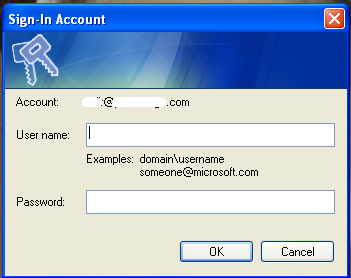
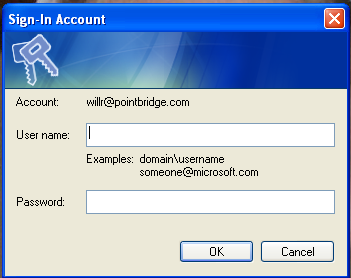
I've run across an interesting behavior with downloading the address book files when logging in outside the network. PSS has confirmed that this is by design so I thought it would be valuable to share with others.
The address book is a set of files created nightly that sit on a file server. A new file is downloaded the first time you run Communicator each day. For details on the Address Book Service, see this link.
When installing ABS, you specify a folder to generate the files. In LCS, you create an entry that is basically a file share path which tells the communicator client where to download the files. To my knowledge, it uses windows authentication. If your machine is in the corporate domain and you are on the internal network, you are logged into both communicator and the file share automatically. There are two logins that occur each time you run communicator. One is for the LCS and one is for the address book share. Internally, you are not prompted. Nice.
It gets interesting when you are outside the firewall or running communicator externally. Because file shares do not resolve externally (VPN does not count as external here), Microsoft provides another way to get the address book files to you. You create an IIS virtual directory on the Enterprise Edition server pointing to the folder containing the files and publish it externally through your reverse proxy/firewall. It must be SSL over basic authentication too.
The documentation states to remove windows authentication on the website but check basic. Based on our IIS knowledge, this guarantees the user will be prompted to authenticate. No automatic windows integrated authentication happening here.
If my machine is in the domain and I leave the office, when I login to Communicator, I am NOT prompted to authenticate to LCS. Communicator uses my cached credentials. However, I still get the login prompt to download the address book files. I created a PSS ticket because I felt that if I use cached credentials, I should get single sign-on behavior although the IIS settings told me it wasn't going to happen. My logic is if Communicator can pass credentials to LCS then why can't it do the same for the ABS? If you cancel on the login prompt, you are still logged into LCS. Now that's confusing! For people whose machines are not members of the domain, you are prompted only once to login to both LCS and ABS which is nice.
This is a long winded way of saying that if you are external, you will be prompted to authenticate to the address book web site.... Unless you set the web site to anonymous
Wednesday, January 25, 2006
Knowing When PIC is Enabled
LCS Public IM Connectivity is a licensed service Microsoft provides that allows a company's Live Communication Server implementation to federate with the 3 public IM vendors - MSN, Yahoo, and AOL. Company's must purchase licenses from Microsoft and then go through a provisioning process.
At the end of December after we had submitted our online provisioning form we were notified that there was a hiatus in new provisioning through early January. Interestingly, we received an email in mid-January stating that provisioning had been approved. We configured LCS to allow Public IM connectivity. However, our Communicator clients could not add PIC contacts.
Our users who had MSN passport accounts using their corporate email address were sent warning emails that their MSN accounts would no longer work after a specified date. There is a process to convert these passport accounts that allow users to continue to use MSN Messenger with their existing contact lists.
In short, Public IM connectivity began working the day after the email stated the change would take place. This date was not in the provisioning approval email. I am curious to see if anyone else has experienced this scenario.
What this means is that somebody in the IT department may want to create an MSN passport account for messenger using a corporate email address before provisioning so they receive the true enablement date!
At the end of December after we had submitted our online provisioning form we were notified that there was a hiatus in new provisioning through early January. Interestingly, we received an email in mid-January stating that provisioning had been approved. We configured LCS to allow Public IM connectivity. However, our Communicator clients could not add PIC contacts.
Our users who had MSN passport accounts using their corporate email address were sent warning emails that their MSN accounts would no longer work after a specified date. There is a process to convert these passport accounts that allow users to continue to use MSN Messenger with their existing contact lists.
In short, Public IM connectivity began working the day after the email stated the change would take place. This date was not in the provisioning approval email. I am curious to see if anyone else has experienced this scenario.
What this means is that somebody in the IT department may want to create an MSN passport account for messenger using a corporate email address before provisioning so they receive the true enablement date!
Tuesday, December 27, 2005
Live Meeting Integration with Communicator
If your company uses Microsoft Office Live Meeting you can establish a session via Office Communicator 2005 in one-click. For the other contacts in the chat, they have to make just 2 clicks.
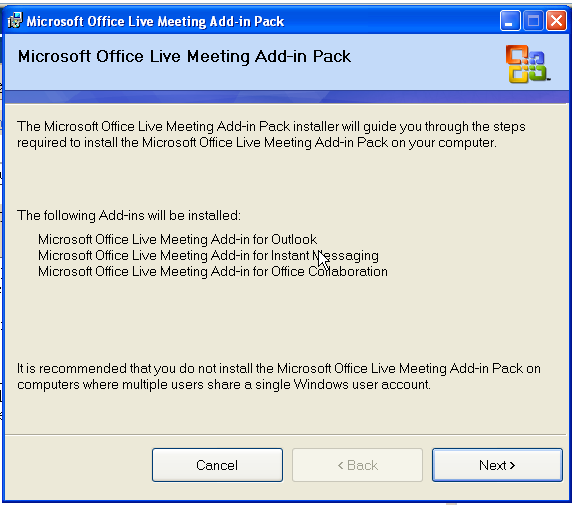
Assuming you have Communicator installed, the first step is to install the latest Live Meeting 2005 Add-in pack.
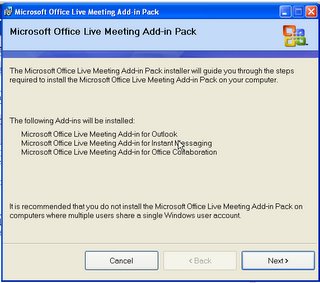
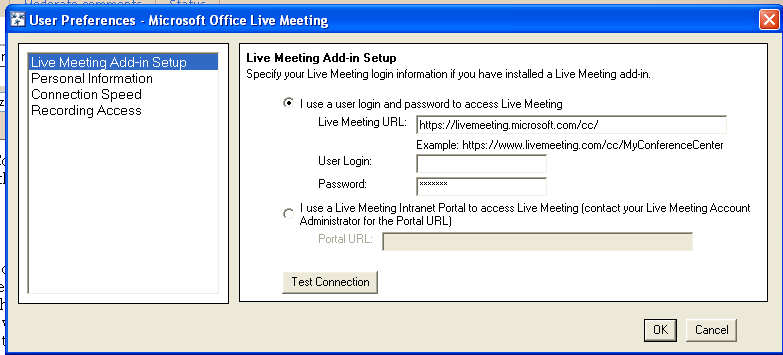
You are prompted to configure your preferences next. It is important to get the correct URL for you company. Also note that the username and password is for the Microsoft Live Meeting servers. For those of you using Live Meeting Portal, you have to ask your administrator for the password if they do not make it available. I will cover Live Meeting Portal in a future release.
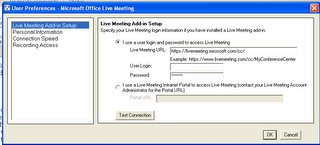
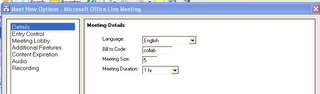
The final step is to configure the Live Meeting settings to create a new session with an attendee limit higher than 2. This allows you to start a Live Meeting session when you have a IM discussion with more than one person. By default, the session size is 2.
In the Start Menu select Microsoft Office Live Meeting Meet Now Options. Change the Session size to something larger than 2 (e.g. 5). Select OK.
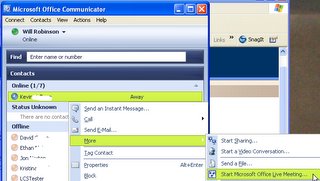
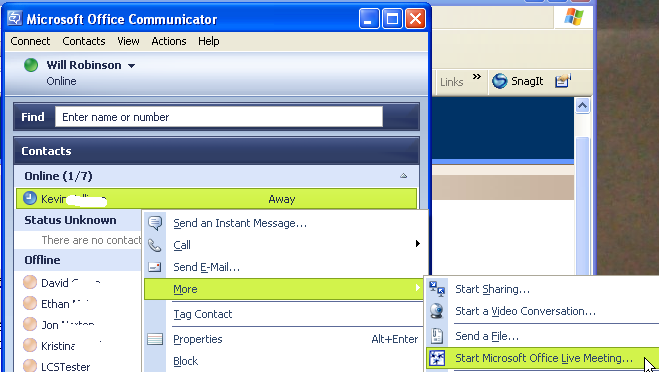
If you want to start a Live Meeting with a contact, right-click on their contact and select More Start Microsoft Office Live Meeting. If you already have a conversation window open with one or more contacts, just select the Live Meeting button at the top.
Assuming you have Communicator installed, the first step is to install the latest Live Meeting 2005 Add-in pack.
You are prompted to configure your preferences next. It is important to get the correct URL for you company. Also note that the username and password is for the Microsoft Live Meeting servers. For those of you using Live Meeting Portal, you have to ask your administrator for the password if they do not make it available. I will cover Live Meeting Portal in a future release.
The final step is to configure the Live Meeting settings to create a new session with an attendee limit higher than 2. This allows you to start a Live Meeting session when you have a IM discussion with more than one person. By default, the session size is 2.
In the Start Menu select Microsoft Office Live Meeting Meet Now Options. Change the Session size to something larger than 2 (e.g. 5). Select OK.

If you want to start a Live Meeting with a contact, right-click on their contact and select More Start Microsoft Office Live Meeting. If you already have a conversation window open with one or more contacts, just select the Live Meeting button at the top.
Friday, December 16, 2005
LCS IM for Blackberry
Handango is offering an entry level IM client for the Blackberry that can connect to LCS and MSN. $45. It looks pretty weak compared to the Mobile Communicator pictures I've seen.
Wednesday, December 14, 2005
Issue Converting .Net Messenger Accounts for LCS
When implementing LCS 2005 with public IM connectivity, all users who have IM accounts using your corporate domain (e.g. will @corpdomain.com) have to convert their accounts to a Microsoft domain (hotmail.com, messengeruser.com) in order to maintain their contact list when using MSN Messenger. We have ran into issues with this conversion process, escalating to MS, and have a solution, albeit not a good one.
This article provides a straightforward description of why you have to convert and includes a link to quickly convert. You get to choose a new IM account name and MS converts the account in about an hour the article states. Essentially, once the conversion takes place and your contacts login again, their contact for you is converted to the new account. There is no disruption. We have found that sometimes when the person converts and then logs in with the new user account, even a day later, all of their contacts appear offline. Reboots and attempting to login with the corpdomain.com account do not work.
MSN support recommends:
This article provides a straightforward description of why you have to convert and includes a link to quickly convert. You get to choose a new IM account name and MS converts the account in about an hour the article states. Essentially, once the conversion takes place and your contacts login again, their contact for you is converted to the new account. There is no disruption. We have found that sometimes when the person converts and then logs in with the new user account, even a day later, all of their contacts appear offline. Reboots and attempting to login with the corpdomain.com account do not work.
MSN support recommends:
- Log in to MSN messenger with new account name.
- Export your contacts to a file (Option in Menus)
- Delete all your contacts manually
- Import the contacts file.
Adding EASI Accounts to Communicator
When implementing LCS 2005 with the public IM connectivity feature, there are a couple extra steps to take to be able to add MSN IM accounts to your Communicator client. First I want to touch on what happens when you implement LCS and MSN IM accounts associated with your corporate domain.
Converting Corpdomain.com Accounts
Some users in your company will inevitably create MSN IM accounts using their work email address (e.g. will@corpdomain.com). Once you implement PIC (public IM connectivity) with LCS for corpdomain.com, users can no longer login to MSN Messgner with their IM account. This is not a big deal if the LCS implementation occurs over a weekend and there is no downtime to the users. The users simply re-add their contacts to the Communicator client and start using this as their IM client. However, the users may want to maintain a separate IM account with all their contacts with no disruption. The users need to convert their corpdomain.com IM accounts to a MS account. The following article provides good instructions on how to convert the IM account to a messengeruser.com or msn.com account. In theory, you wait an hour after conversion and once all your contacts login again, their contacts lists reflect your new account. I have seen sporadic issues with this process which I'll cover in a different entry.
EASI Accounts
EASI accounts are IM/Passport accounts using non-Microsoft owned domains. Until recently, you could not add IM accounts to Communicator that were EASI accounts. There is a good article on issues with EASI accounts and PIC.
Today, Jeremy Buch (Microsoft), responded in a community thread where I posed the question about when EASI accounts would be supported. According to him, they are supported. There is a slight variation when adding a contact with an EASI account. Instead of adding the account as will@ personldomain.com, you add the account as will(personaldomain.com)@msn.com. This applies to adding the account from outside the MSN cloud or from your LCS implementation using Communicator. If you are using MSN Messenger, add the contact using the email address.
Converting Corpdomain.com Accounts
Some users in your company will inevitably create MSN IM accounts using their work email address (e.g. will@corpdomain.com). Once you implement PIC (public IM connectivity) with LCS for corpdomain.com, users can no longer login to MSN Messgner with their IM account. This is not a big deal if the LCS implementation occurs over a weekend and there is no downtime to the users. The users simply re-add their contacts to the Communicator client and start using this as their IM client. However, the users may want to maintain a separate IM account with all their contacts with no disruption. The users need to convert their corpdomain.com IM accounts to a MS account. The following article provides good instructions on how to convert the IM account to a messengeruser.com or msn.com account. In theory, you wait an hour after conversion and once all your contacts login again, their contacts lists reflect your new account. I have seen sporadic issues with this process which I'll cover in a different entry.
EASI Accounts
EASI accounts are IM/Passport accounts using non-Microsoft owned domains. Until recently, you could not add IM accounts to Communicator that were EASI accounts. There is a good article on issues with EASI accounts and PIC.
Today, Jeremy Buch (Microsoft), responded in a community thread where I posed the question about when EASI accounts would be supported. According to him, they are supported. There is a slight variation when adding a contact with an EASI account. Instead of adding the account as will@ personldomain.com, you add the account as will(personaldomain.com)@msn.com. This applies to adding the account from outside the MSN cloud or from your LCS implementation using Communicator. If you are using MSN Messenger, add the contact using the email address.
Tuesday, December 06, 2005
SharePoint Indexing Issue
I came across an interesting issue with moving the Indexing role to a new server in a SharePoint farm. I haven't seen anything online to suggest any solutions.
I have a small server farm with separate physical sql server. Due to the timing of availability of the second front-end server hardware, we are building the Index server first. We are enforcing SSL for our Portal. The Portal has been restored from a different environment using the spsbackup. I am able to add the new server to the farm. I am then able to move the Index and Job roles to the new server.
When I navigate to the Portal's searching and indexing page, I see an error message under each section (i.e. content indexes, content sources, search scopes). The error states cannot contact the indexing server and shows the server name of the server assigned the role.
After digging around and reinstalling SharePoint with no fix, I decided to add the default content access service account to the local administrator group. That fixed our issue in the search and indexing screens. We successfully rebuilt the indexes.
Now we were receiving a "path not found error" in the event log as the indexes were not propagating to the front-end server. We added the same service account to the local administrator group on the front-end server and the propagation completed successfully.
MS documentation states to add this service account to the Power Users group. This doesn't seem to be sufficient for our scenario. When I get some free time, I need to figure out if the issue is due to SSL enforcement or the fact the indexes are on a separate machine as the search indexes.
I have a small server farm with separate physical sql server. Due to the timing of availability of the second front-end server hardware, we are building the Index server first. We are enforcing SSL for our Portal. The Portal has been restored from a different environment using the spsbackup. I am able to add the new server to the farm. I am then able to move the Index and Job roles to the new server.
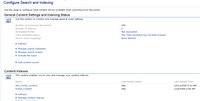
When I navigate to the Portal's searching and indexing page, I see an error message under each section (i.e. content indexes, content sources, search scopes). The error states cannot contact the indexing server and shows the server name of the server assigned the role.
After digging around and reinstalling SharePoint with no fix, I decided to add the default content access service account to the local administrator group. That fixed our issue in the search and indexing screens. We successfully rebuilt the indexes.
Now we were receiving a "path not found error" in the event log as the indexes were not propagating to the front-end server. We added the same service account to the local administrator group on the front-end server and the propagation completed successfully.
MS documentation states to add this service account to the Power Users group. This doesn't seem to be sufficient for our scenario. When I get some free time, I need to figure out if the issue is due to SSL enforcement or the fact the indexes are on a separate machine as the search indexes.
Thursday, November 17, 2005
SharePoint Searching CMS Sites Tip
We are replacing a customer's intranet web site with a SharePoint & Content Management Server solution. I encountered an issue when configuring SharePoint to crawl CMS channels and postings.
Environment Background
Before diving into the tip, here is a brief background. SharePoint and CMS are installed on the same front-end servers in the same Default Web Site. That should be enough background. Microsoft states that you install CMS first, followed by SharePoint, and finally the CMS/Sharepoint Connector.
SharePoint's Domination of IIS
SharePoint takes over managing an IIS website when you extend it. If you have any other folders or virtual directories in a website you have to create exclusions in the virtual server settings. The virtual directory in our case is the top level Channel in CMS. There is a fantastic KB article on coexistence of CMS and SharePoint on the same web site. In addition to creating an exclusion path, you have to go into your excluded CMS virtual directory in IIS and remove the custom HTTP SharePoint Header. What we found is that SharePoint and CMS coexist fine without removing the Header.... except for Search.
Configuring Search
There is documentation all over the web to configure SharePoint to crawl CMS. We were able to get SharePoint to index the channels but not the CMS postings (web pages).
TIP: After you create a virtual directory in a SharePoint managed web site, you have to remove the SharePoint HTTP header. That's right. SharePoint monitors the IIS web site and stamps anything new with a custom HTTP header.
On our project, the infrastructure person configured the environment and then the developer created the top level channel and began developing the templates within the channels. It was a timing issue. I hope this saves somebody several hours of troubleshooting.
By the way, the Contoso Virtual Machine has the same issue. MS forgot to remove the http header for each of the Woodgrove sample sites. Ironically the CMSConnector sample site in the same IIS web site is indexed because the header has been removed.
Environment Background
Before diving into the tip, here is a brief background. SharePoint and CMS are installed on the same front-end servers in the same Default Web Site. That should be enough background. Microsoft states that you install CMS first, followed by SharePoint, and finally the CMS/Sharepoint Connector.
SharePoint's Domination of IIS
SharePoint takes over managing an IIS website when you extend it. If you have any other folders or virtual directories in a website you have to create exclusions in the virtual server settings. The virtual directory in our case is the top level Channel in CMS. There is a fantastic KB article on coexistence of CMS and SharePoint on the same web site. In addition to creating an exclusion path, you have to go into your excluded CMS virtual directory in IIS and remove the custom HTTP SharePoint Header. What we found is that SharePoint and CMS coexist fine without removing the Header.... except for Search.
Configuring Search
There is documentation all over the web to configure SharePoint to crawl CMS. We were able to get SharePoint to index the channels but not the CMS postings (web pages).
TIP: After you create a virtual directory in a SharePoint managed web site, you have to remove the SharePoint HTTP header. That's right. SharePoint monitors the IIS web site and stamps anything new with a custom HTTP header.
On our project, the infrastructure person configured the environment and then the developer created the top level channel and began developing the templates within the channels. It was a timing issue. I hope this saves somebody several hours of troubleshooting.
By the way, the Contoso Virtual Machine has the same issue. MS forgot to remove the http header for each of the Woodgrove sample sites. Ironically the CMSConnector sample site in the same IIS web site is indexed because the header has been removed.
Subscribe to:
Posts (Atom)